How to Upgrade Your PC in 2026 — What to Replace First and When
Every PC eventually needs an upgrade, but throwing money at the wrong component wastes your budget and often produces little performance gain. The right upgrade depends on what is actually slowing your specific system down — and that is almost never obvious without knowing how to look. This guide walks you through identifying your bottleneck, deciding whether to upgrade or build new, and choosing the specific part that will make the biggest real-world difference.
How to identify your actual bottleneck
A bottleneck in a PC is the component that is running at or near 100% capacity while other components have spare headroom. In gaming, the bottleneck determines your frame rate — whichever component runs out first sets the ceiling. If your GPU is at 99% utilization and your CPU is at 40%, your GPU is the bottleneck and a faster CPU will not help your frame rate. If your CPU is at 95% and GPU at 50%, your CPU is the bottleneck.
The easiest free tool to diagnose your bottleneck is MSI Afterburner combined with RivaTuner Statistics Server, which adds an in-game overlay showing GPU usage, CPU usage per core, RAM usage, VRAM usage, and temperatures in real time. Alternatively, Task Manager (Ctrl+Shift+Esc) → Performance tab shows CPU, RAM, and GPU utilization. Run your problem game or application and check which component is at or near 100% — that is what limits your performance.
There are also subtler bottlenecks that monitoring tools alone may not reveal. RAM running at reduced speeds due to XMP/EXPO being disabled in BIOS is a common hidden bottleneck — your RAM stick says DDR4-3600 but runs at DDR4-2133 (the default JEDEC speed) because XMP was never enabled. Thermal throttling is another: a CPU that looks like it is at 70% utilization but has hit its thermal limit will reduce clock speeds to cool down, appearing healthy in utilization while secretly running slower than it should. Check temperatures alongside utilization.
The upgrade priority order by symptom
Symptom: Low FPS in games, GPU near 100%
This is the clearest bottleneck — you need a faster GPU. Before buying, check that your current GPU is not thermal throttling (if it runs above 85°C consistently, clean the fans and reapply thermal paste first — this can recover 10-15% performance for free). Also verify that your GPU is running at full PCIe bandwidth — check that it is seated in the top PCIe x16 slot, not a secondary x4 slot.
When choosing an upgrade, aim for at least a 50% performance improvement over your current GPU — anything less provides a disappointing real-world difference. If your current GPU is an RTX 3060, upgrading to an RTX 4060 (roughly 15-20% faster) is not worth the money. Upgrading to an RTX 5060 Ti (roughly 60-70% faster) is a meaningful jump. Use GPU benchmark charts to compare your current card against potential upgrades in terms of percentage improvement.
Symptom: Low FPS in games, CPU near 100%, GPU under 80%
Your CPU is the bottleneck. This is most common in competitive games (Valorant, CS2, Fortnite) and open-world games with complex simulation (GTA, Cyberpunk). The fix is either a faster CPU (higher clock speeds help more than core count for gaming) or reducing in-game settings that are CPU-heavy — crowd density, simulation quality, draw distance.
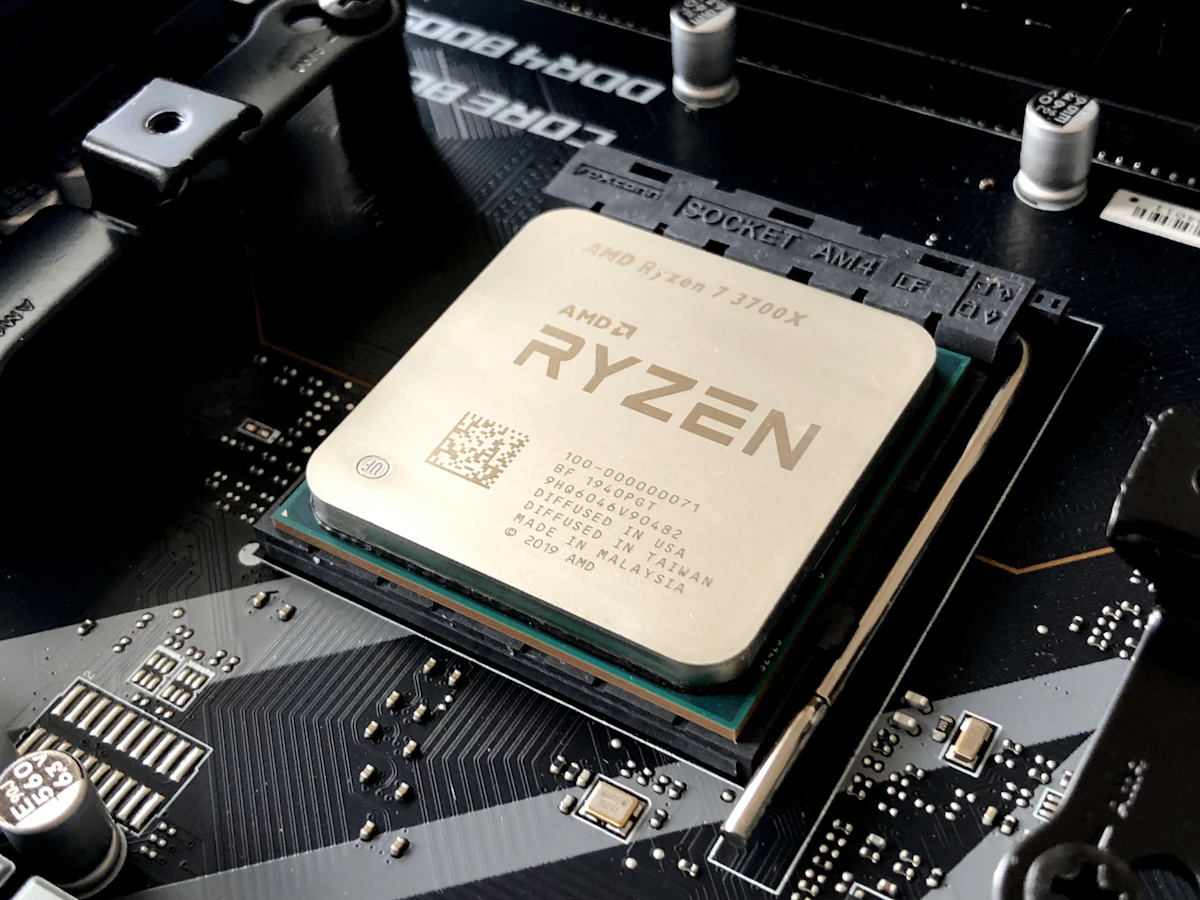
CPU upgrades are constrained by your motherboard's socket. An Intel LGA1700 board supports 12th-14th gen Intel CPUs. An AMD AM4 board supports Ryzen 1000 through 5000 CPUs. An AM5 board supports Ryzen 7000 and 9000. Dropping a newer, faster CPU into your existing board is the cheapest path — check your motherboard's CPU support list on the manufacturer's website before buying. Sometimes a BIOS update is required to support newer CPU models on the same socket.
Symptom: Low FPS in games with stuttering, GPU and CPU not near 100%
Stuttering when neither GPU nor CPU is maxed out often points to RAM issues: too little RAM (causing page file swapping), RAM running at default slow speeds (XMP not enabled), or a RAM compatibility issue. Check your RAM usage in Task Manager — if total RAM usage is above 80% while gaming, adding more RAM will help. If RAM usage is fine but speeds show 2133MHz when you paid for 3600MHz, enable XMP in BIOS.
Storage can also cause stuttering in open-world games — if the game is installed on a mechanical HDD, it cannot stream world data fast enough as you move through the environment. Moving the game to an NVMe SSD can eliminate stuttering caused by slow storage completely, and a 1TB NVMe SSD costs $100-200, making this one of the cheapest and most impactful upgrades for HDD users.
Symptom: Smooth games but everything feels slow — loading, multitasking, boot time
If gaming performance is acceptable but your PC feels slow in general use, the bottleneck is almost certainly your storage or RAM. Adding an NVMe SSD (or upgrading from a SATA SSD to NVMe) dramatically reduces boot times, application load times, and browser responsiveness. For systems still running Windows from a mechanical HDD, the upgrade to any SSD will make the PC feel like a completely different machine.
Best upgrade options in 2026 by component
GPU upgrades — best value options in 2026
CPU upgrades — same-socket drops for AM4 and AM5
RAM upgrades — when and what to add
When to upgrade vs. when to build new
The decision between upgrading an existing system and building new comes down to platform age and how much of the system would need replacing. A useful rule of thumb: if an upgrade requires changing more than two major components (CPU + motherboard + RAM all together = platform upgrade), you are spending enough money that a fresh build with carefully selected parts often delivers better value.
Platform upgrades happen when you have exhausted the CPU options on your current socket. AM4 is now a mature, closed platform — the Ryzen 7 5800X3D is the best gaming CPU available for it, and there will be no new CPUs. If your AM4 system needs more than the 5800X3D can provide, a platform change to AM5 or LGA1700 is necessary. Similarly, LGA1700 boards will support up to 14th gen Intel CPUs and no further — the next step up requires a new platform.
Concrete guidance: if your system is using a CPU from 2018 or earlier (9th gen Intel, Ryzen 2000, or older), you are on a platform that cannot be upgraded meaningfully at reasonable cost. A new build makes more financial sense than trying to extend the life of aging hardware where each upgrade (CPU + motherboard + RAM) costs nearly as much as a new mid-range system built from current parts.
If your system uses a Ryzen 5000 CPU on AM4 or an Intel 12th-14th gen CPU on LGA1700, you are on a still-viable platform. A GPU upgrade is worthwhile and can get several more years of life out of the system. A CPU upgrade within the same socket (to a 5800X3D or 14600K) is also reasonable. Combined GPU + CPU upgrade on an existing platform usually makes more sense than a full rebuild for this generation.
Free optimizations before spending money
Before buying any upgrade, try these free steps that can recover significant performance on an existing system:
The upgrade decision in one sentence
Find your bottleneck first, then spend the minimum to remove it — and if removing the bottleneck requires changing more than two major components, consider whether a focused new build is more cost-effective.
For most people in 2026, the GPU is the right first upgrade. GPU performance has improved dramatically since 2020, and many systems are still running 10xx or 20xx series Nvidia cards or RX 5000 series AMD cards that are significantly behind in performance per watt and feature support compared to current generation hardware. A GPU upgrade into the RTX 5060 Ti or RX 9070 XT tier on a system with a Ryzen 5600 or i5-12400F will transform gaming performance without requiring any other changes.
Frequently asked questions
Can I use a new GPU with an old CPU?
Yes, as long as your motherboard has a PCIe x16 slot (any motherboard from the last 10 years does). Modern GPUs are backwards compatible with older PCIe generations — an RTX 5060 Ti will work in a PCIe 3.0 slot, though it will be slightly bandwidth-limited compared to PCIe 4.0 or 5.0. The performance reduction from PCIe 3.0 vs 4.0 is small (3-5% in most gaming scenarios) and not worth preventing an otherwise worthwhile GPU upgrade.
Do I need to reinstall Windows when upgrading my CPU?
For a same-socket CPU upgrade (e.g., Ryzen 5 5600 to Ryzen 7 5800X3D on the same AM4 board), no reinstall is needed. Windows detects the new CPU on the next boot and loads appropriate drivers. For a platform change (new CPU + new motherboard), a clean Windows install is strongly recommended even if Windows technically boots — accumulated drivers and settings for the old hardware can cause instability and suboptimal performance.
Will a new GPU need a new power supply?
Possibly. Check your current PSU wattage against the new GPU's recommended system TDP. The RTX 5060 Ti (180W) is fine with a 650W PSU in most systems. The RX 9070 XT (304W) needs 750W+ with a modern CPU. If your PSU is under 5 years old from a reputable brand (Corsair, Seasonic, be quiet!), it is likely fine at the rated wattage. If it is older or from an unknown brand, upgrading the PSU alongside the GPU is a wise precaution.
Is DDR5 worth upgrading to from DDR4?
Not in isolation. DDR5 requires a new CPU and motherboard — you cannot add DDR5 RAM to a DDR4 motherboard. If you are doing a full platform upgrade to AM5 or Intel 12th gen+, DDR5 comes with it and is worth having. But upgrading from a working DDR4 system purely for DDR5 is not worthwhile — the gaming performance difference between optimal DDR4 (3600MHz, tight timings) and DDR5 (6000MHz) is 5-10% in the best case, far less than a GPU or CPU upgrade of comparable cost.
How do I sell my old PC parts to fund upgrades?
eBay and Facebook Marketplace are the most effective platforms for selling used PC parts. Price your parts at 60-70% of current retail for fast sales, or 70-80% for patient sellers willing to wait. GPU, CPU, and RAM hold value reasonably well. Cases and PSUs are harder to sell locally but can go on eBay. Always test parts before listing, disclose any defects honestly, and photograph carefully — buyers will pay a premium for clean, well-photographed listings with honest descriptions.
Related articles
Want a custom build for your budget?
Try our free AI PC Builder — describe your games and budget, and get a fully compatible parts list with real Amazon prices in seconds.
Build with AI →